리액트 네이티브 - 터미널에서 expo 프로젝트 생성하기

expo 프로젝트 생성 시 빠른 세팅 (expo dashboard 이용하지 않고 터미널 이용 가능)
eas update:configure 실행 시 Error: package.json is outside of the current git repository
1. 공식 홈페이지 참고하여 RN 프로젝트 생성
Setting up the development environment · React Native
위 공식 문서를 참고해도 좋지만 간단한 명령어니 포스팅을 보고 따라해도 무방하다.
터미널에서 경로를 확인한 후 npm 유저 명령어
npx create-expo-app "프로젝트 이름"
yarn 유저 명령어
yarn create expo-app "프로젝트 이름"
둘 중 사용하는 패키지 매니저의 명령어를 이용해 프로젝트를 생성한다!
2. eas update:configure
프로젝트 생성이 다 되었다면,
eas update:configure
명령어를 입력한다. 이때 eas update:configure 오류가 발생하여 아래 '오류 해결' 부분에 작성해 두었다!
이때 다시 한번 confirm 메세지가 출력 되면, Y를 입력해서 진행하면 되고 로그인을 하라고 출력이 된다면, 당황하지 말고 expo 계정을 로그인해서 연동시키면 된다.
실행 결과
EAS project not configured.
√ Would you like to automatically create an EAS project for @hyoloui/RN-movie-app? ... yes
√ Created @hyoloui/RN-movie-app (https://expo.dev/accounts/hyoloui/projects/RN-movie-app) on Expo
√ Linked local project to EAS project 354f8f66-07bf-4fcf-89bf-cec2d9a7f187
💡 The following process will configure your project to run EAS Update. These changes only apply to your local project files and you can safely revert them at any time.
> npx expo install expo-updates
√ Configured updates.url to "https://u.expo.dev/354f8f66-07bf-4fcf-89bf-cec2d9a7f187"
√ Configured runtimeVersion for Android with "{"policy":"sdkVersion"}"
√ Configured runtimeVersion for iOS with "{"policy":"sdkVersion"}"
EAS Build is not configured. If you'd like to use EAS Build with EAS Update, run eas build:configure, then re-run eas update:configure to configure eas.json with EAS Update.

All builds of your app going forward will be eligible to receive updates published with EAS Update.

🎉 Your app is configured with EAS Update!

Next steps:

Update a production build:
1. Create a new build. Example: eas build --profile production.
2. Make changes in your project.
3. Publish an update. Example: eas update --channel production.
4. Force close and reopen the app at least twice to view the update.

Preview an update:
1. Publish an update to a branch. Example: eas update --branch new-feature.
2. In Expo Go or a development build, navigate to Projects > [project name] > Branch > Open.
정상 작동시 출력 메세지가 나왔다면 expo에서 다시 한번 확인해 보자.
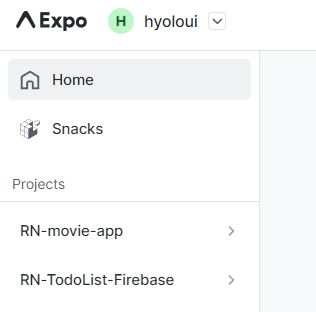
내가 만든 'RN-movie-app' 프로젝트가 자동으로 생성되었다.
3. eas update : 배포하기
eas update
이제 update 명령어를 통해 배포부터 해놓자.
여기서 기본 브랜치인 'master' 브랜치를 생성한다면 바로 엔터를 누르면 된다.
PS C:\Users\tmdgy\Desktop\study\07_react_native\Rn-movie-app> eas update
EAS Build is not configured. If you'd like to use EAS Build with EAS Update,
 run eas build:configure, then re-run eas update:configure to configure eas.json with EAS Update.
? No branches found. Provide a branch name: » master
커밋 메세지도 물어보는데 중요한 내용이 없으니, 엔터로 넘어가자.
√ No branches found. Provide a branch name: ... master
? Provide an update message. » Initial commit

Generated by create-expo-app 1.1.4.
이러한 메세지가 뜬다면 잘 배포가 된 것이고, 아래 Website link로 들어가보자.
실행 결과
√ No branches found. Provide a branch name: ... master
√ Provide an update message. ... Initial commit

Generated by create-expo-app 1.1.4.
[expo-cli] Starting Metro Bundler
[expo-cli] Android Bundling complete 101600ms
[expo-cli] Bundle                     Size
[expo-cli] ┌ index.ios.js           865 kB
[expo-cli] index.android.js         868 kB
[expo-cli] index.ios.js.map        3.61 MB
[expo-cli] index.android.js.map    3.62 MB
[expo-cli] 💡 JavaScript bundle sizes affect startup time. Learn more: https://expo.fyi/javascript-bundle-sizes
[expo-cli] iOS Bundling complete 101605ms
[expo-cli] Finished saving JS Bundles
[expo-cli] Dumping source maps
[expo-cli] Preparing additional debugging files
[expo-cli] Export was successful. Your exported files can be found in dist
√ Exported bundle(s)
√ Uploaded: No changes detected
√ Channel: master pointed at branch: master
√ Published!

Branch             master
Runtime version    (가림)
Platform           (가림)
Update group ID    (가림)
Android update ID  (가림)
iOS update ID     (가림)
Message            Initial commit

Generated by create-expo-app 1.1.4.
Commit             f5832c907212f62157996ba108ffa0ca7ffa4b10*
Website link       https://expo.dev/accounts/hyoloui/projects/RN-movie-app/updates/9eb7f29b-af89-480e-b157-e57e84f5329b
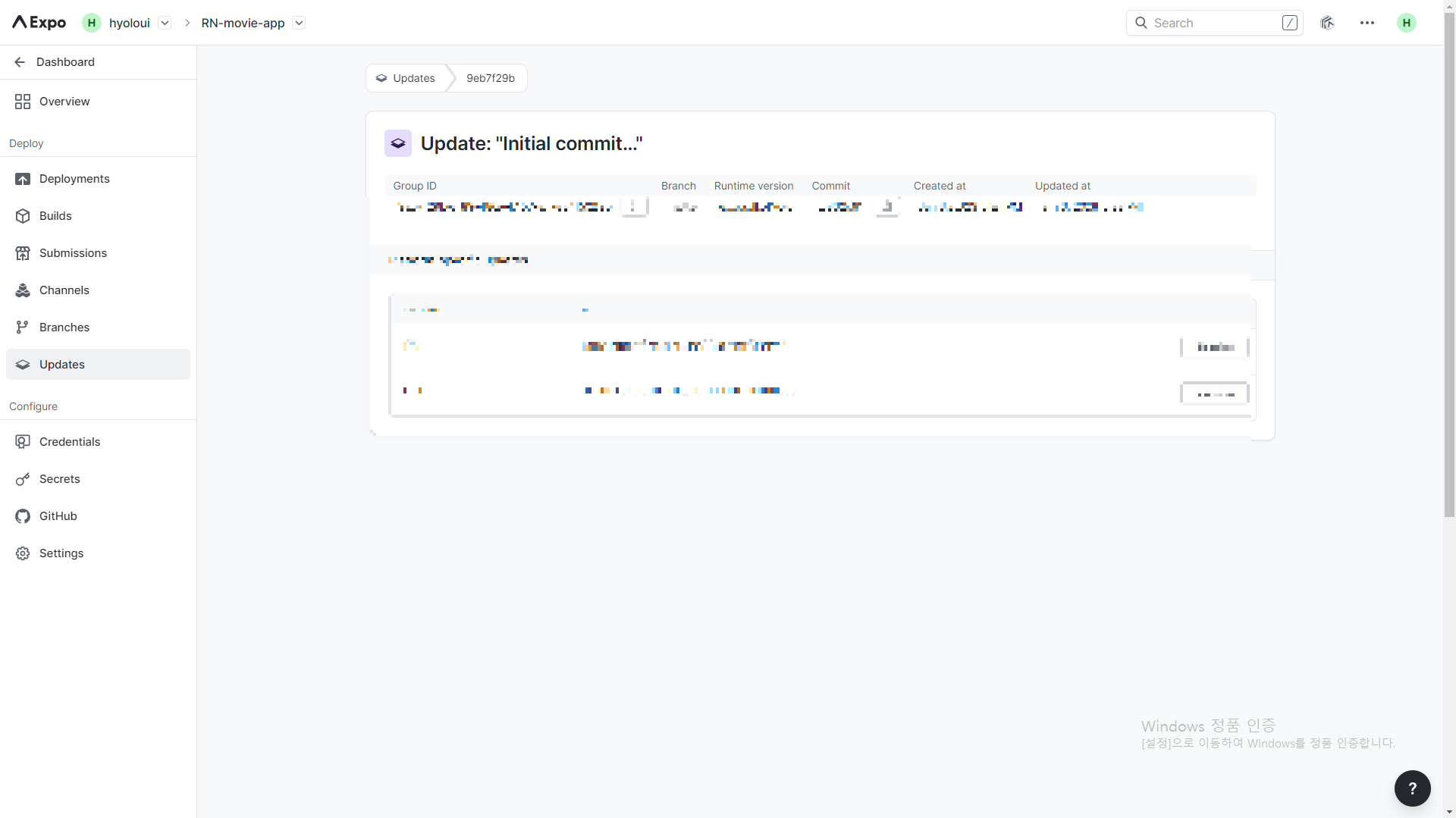
그럼 이렇게 프로젝트 배포된 링크가 나오고,

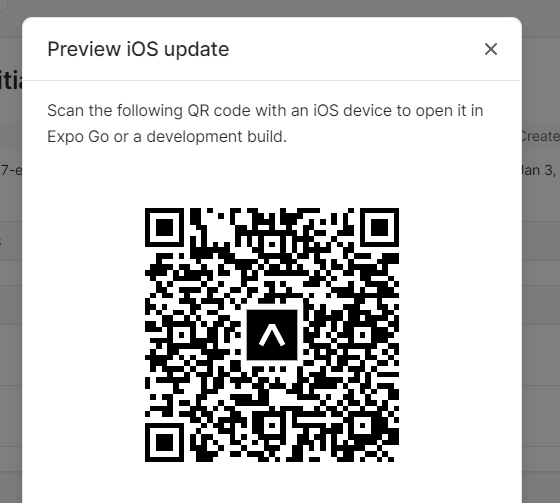
Preview 버튼을 눌러 내가 배포한 주소의 expo QR code가 나온다.
4. 프로젝트 구동
이제 모든 준비가 끝났다.
npm start
npm 유저는 위 명령어를 입력하고,
yarn start
yarn 유저는 위 명령어를 통해 프로그램을 구동 시킨다!
실행 결과
> rn-movie-app@1.0.0 start
> expo start

Starting project at C:\Users\tmdgy\Desktop\study\07_react_native\Rn-movie-app
Starting Metro Bundler

(QR 코드)

› Metro waiting on exp://192.168.25.16:19000
› Scan the QR code above with Expo Go (Android) or the Camera app (iOS)

› Press a │ open Android
› Press w │ open web

› Press j │ open debugger
› Press r │ reload app
› Press m │ toggle menu

› Press ? │ show all commands

Logs for your project will appear below. Press Ctrl+C to exit.
이렇게 빠르게 RN 프로젝트 생성과, 구동까지 해보았다.
간혹 window 유저에서 발생하는 에러를 겪었기 때문에, 만약 프로젝트 구동 후, QR code 인식 중 에러가 발생한다면 아래 포스팅의 에러 해결 부분을 참고해 보자.
2022.12.30 - [React-Navtive] - 리액트 네이티브 - 새로운 프로젝트 만들기 (expo), 에러 해결
+ 오류 해결
eas update:configure 에서 Error: package.json is outside of the current git repository
실행 결과
PS C:\Users\tmdgy\Desktop\study\07_react_native> eas update:configure
Error: package.json is outside of the current git repository (project ro

디렉터리: C:\Users\tmdgy\Desktop\study\07_react_native
eas update:configure 명령어를 입력 한 뒤 이와 같은 에러가 발생한다면 경로를 다시 확인해보자. 내가 만든 프로젝트 안에 있어야 eas update가 가능하다!
npx create-expo-app,yarn create expo-app명령어로 RN 프로젝트 생성- 경로 설정 후,
eas update:configure명령어로 프로젝트 자동 생성 eas update로 배포npm start,yarn start로 프로젝트 구동Error: package.json is outside of the current git repository에러는 경로 설정이 잘못 되어서 발생하는 문제