Project : MZL - 로그인

Firebase - Authentication : 로그인 / 로그아웃 기능 학습 및 적용 >> Firebase : FireStore 연결
- 로그아웃 후
currentUser가 null이 되어 마이페이지 tabs 클릭시 에러가 출력
1. UI Layout 만들기
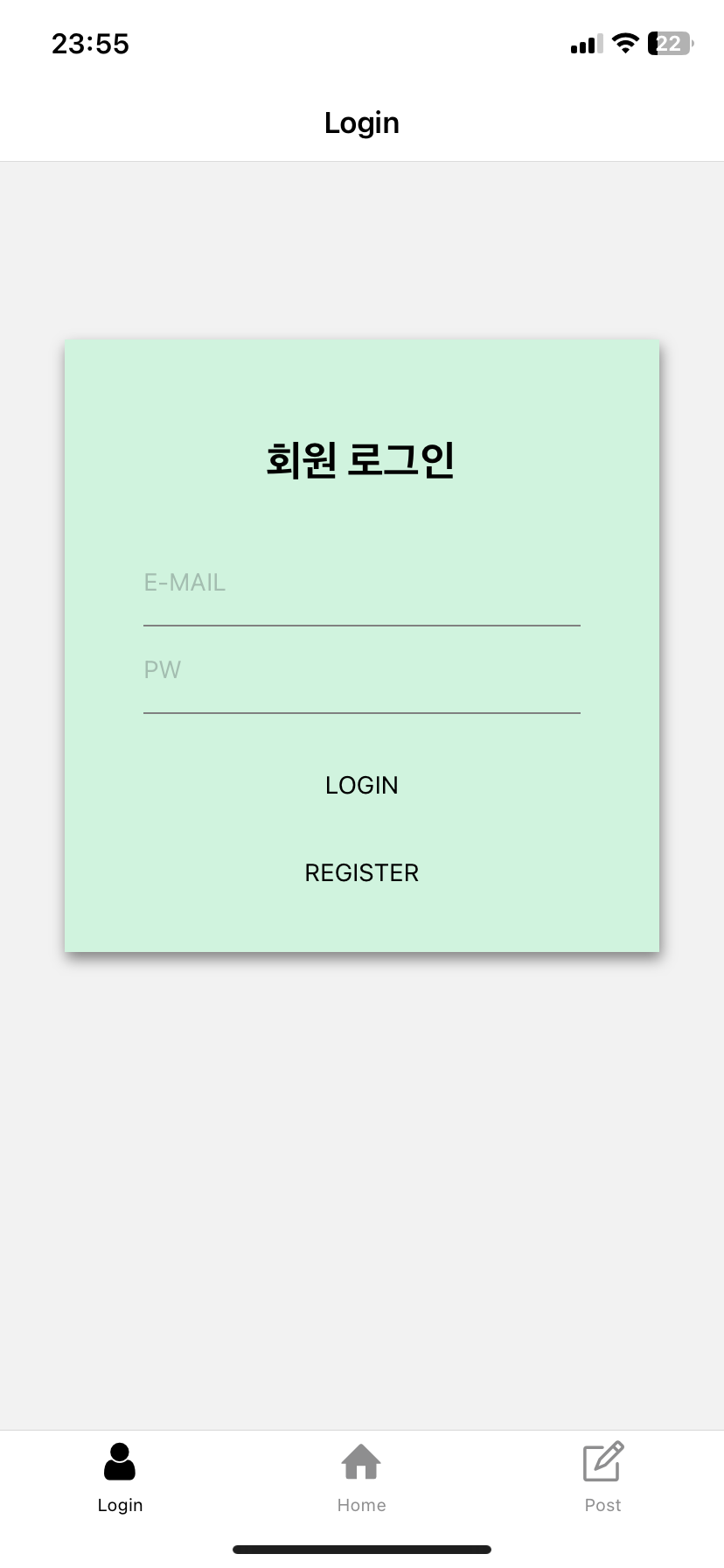
<KeyboardAwareScrollView
  style={{ paddingHorizontal: 30 }}
  extraScrollHeight={150}
>
  <AuthLoginContainerView>
    <TitleText>회원 로그인</TitleText>
    <Text style={{ color: 'red', height: 20 }}>{alertText}</Text>
    <IDInput
      value={email}
      onChangeText={setEmail}
      placeholder="E-MAIL"
      ref={focusEmail}
      onSubmitEditing={() => focusPw.current.focus()}
    />
    <PWInput
      value={password}
      onChangeText={setPassword}
      placeholder="PW"
      ref={focusPw}
      onSubmitEditing={() => onSubmitLogin()}
      // autoComplete="password"
      // textContentType="password"
      // secureTextEntry={true}
    />
    <Buttons>
      <ButtonsText onPress={() => onSubmitLogin()}>LOGIN</ButtonsText>
    </Buttons>
    <Buttons onPress={() => navigate('Stacks', { screen: 'Register' })}>
      <ButtonsText>REGISTER</ButtonsText>
    </Buttons>
  </AuthLoginContainerView>
</KeyboardAwareScrollView>
회원가입 UI와 마찬가지로 <KeyboardAwareScrollView/> 라는 라이브러리를 사용했다..
라이브러리로 가져온 태그로 상위를 감싸주었고, ID(아이디), Password(비밀번호), Login(로그인), Register(회원가입) 부분으로 나누었다
스타일은 Emotion을 사용했다
회원가입기능, 로그인 실행 함수에서 유효성 검사가 진행되는데 해당 부분의 로직이 전체적으로 코드가 길고 가독성이 떨어져 유효성검사를 하는 부분을 따로 나누어 리펙토링 해 주었다
2. 유효성 검사
const textConfirm = () => {
  if (!email) {
    focusEmail.current.focus();
    alertTextTimer('이메일을 입력해 주세요');
    return true;
  } else if (email.indexOf('@') == -1) {
    alertTextTimer('이메일 형식이 아닙니다.');
    focusEmail.current.focus();
    return true;
  } else if (!password) {
    alertTextTimer('비밀번호를 입력해 주세요');
    focusPw.current.focus();
    return true;
  } else if (password.length < 6) {
    alertTextTimer('비밀번호는 6자리 이상 입력해주세요!');
    focusPw.current.focus();
    return true;
  }
};
위 코드에서도 회원가입과 같이 유효성검사를 통과하지 못했을 때 alertTextTimer 라는 함수로 UI부분에 삽입해 문제 부분을 텍스트로 보여주고,
const alertTextTimer = (message) => {
  setAlertText(message);
  setTimeout(() => setAlertText(''), 3000);
};
useRef를 활용해 해당하는 영역(TextInput)이 focus가 되도록 만들어주었다. focus == 마우스로 클릭하여 입력상태로 만든것!
원문에 있던 동영상은 서비스 종료로 재생할 수 없습니다.
3. authentication >> 로그인 api
// LOGIN API
const onSubmitLogin = () => {
  // 유효성 검사 진행
  if (textConfirm()) {
    return;
  }
  // Firebase : authentication API
  signInWithEmailAndPassword(auth, email, password)
    .then((userCredential) => {
      const user = userCredential.user;
      Alert.alert('🎉로그인 성공', `${user.displayName}님 환영합니다`, [
        {
          text: 'OK',
          onPress: () =>
            reset({
              index: 0,
              routes: [{ name: 'Tabs', params: { screen: 'Home' } }],
            }),
        },
      ]);
    })
    .catch((error) => {
      const errorCode = error.code;
      const errorMessage = error.message;
      console.log('errorMessage:', errorCode, errorMessage);
      if (errorMessage.includes('user-not-found')) {
        alertTextTimer('가입되지 않은 회원입니다.');
        return;
      } else if (errorMessage.includes('wrong-password')) {
        alertTextTimer('비밀번호가 올바르지 않습니다.');
      }
    });
};
첫번째로 유효성검사 함수를 실행해 조건과 일치하여 검사에 걸린다면 그대로 return 되어 다른 코드 실행없이 종료된다
signInWithEmailAndPassword API를 import하여 함수를 실행하고 인자로
- auth(firebase authentication)
- email (TextInput에서 setSate하여 입력받은 state값)
- pasword (TextInput에서 setSate하여 입력받은 state값)
를 넘겨준다!
.then .catch 문을 활용해 실행이 된다면 알럿(알림창)으로 알려주고, 확인( OK ) 버튼을 (onPress())누르면 reset 함수로 홈화면으로 이동되게 하고,
에러가 발생한것을 catch문으로 잡아 콘솔에 에러메세지를 띄워 자주 발생하는 에러에 대해 firebase가 내려주는 텍스트를 조건문으로 검사하고, include를 통해 유효성검사와 같은 효과처럼 유저에 친화적인 text를 보여줄 수 있었다
+ 오류 발견
마이페이지 screen
로그아웃 기능 구현중 로그아웃이 되어 auth.currentUser가 감지되지 않으면, 마이페이지 클릭했을 때 로그인페이지로 이동하는 것을 구현하고 있었다.
하지만 로그아웃이 되면 currentUser가 null이 되어 마이페이지 tabs 클릭시 에러가 출력되었다.
해당 에러는 내일 해결하고 자세히 다루도록 하겠다!
- 로직은 회원가입과 매우 유사
- 유효성검사 함수 분리하여 코드 간소화 진행!
- 로그인이 완료되면 alert으로 알려주고, navigate 기능인
reset을 활용하여 Home화면으로 이동 - KeyboardAwareScrollView 라이브러리 사용 : 하단 링크 참조